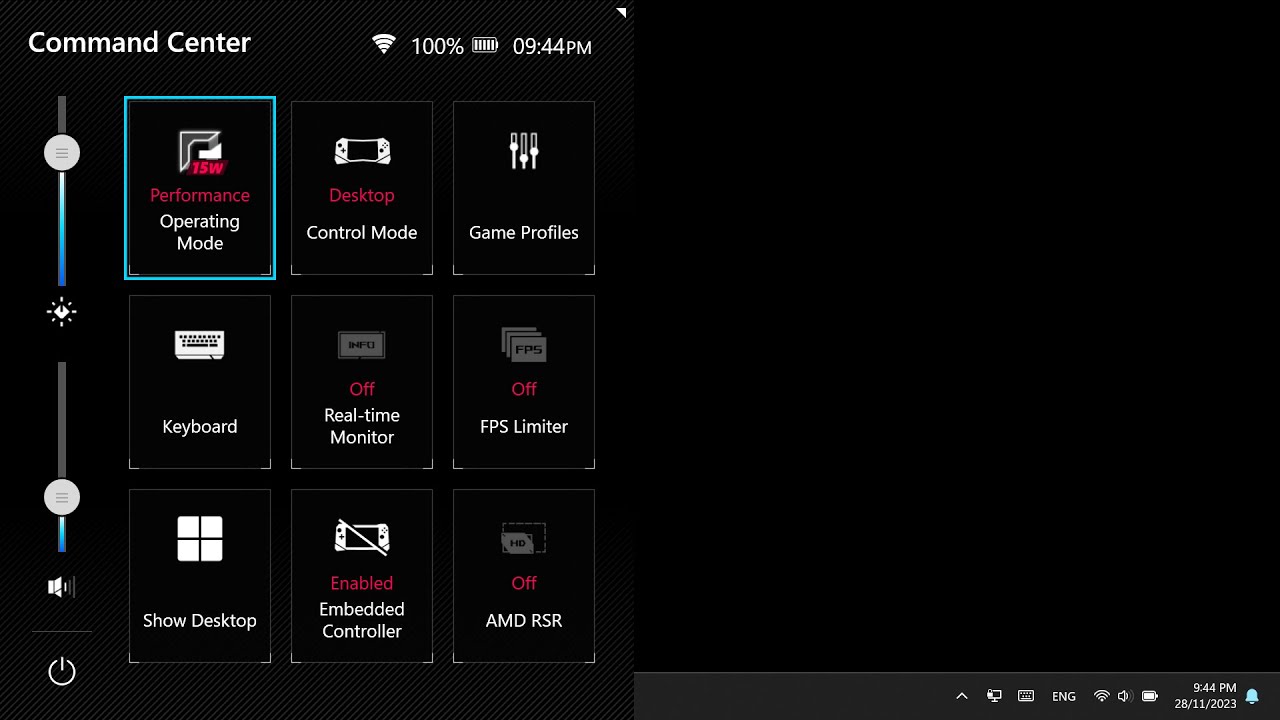
You're in the middle of a boss fight in Elden Ring, or maybe just trying to tweak your TDP settings in the Command Center, and suddenly... nothing. You press the Command Center button. Silence. You hit the Armoury Crate button on the right. Still nothing. It's one of those maddening moments that makes you want to chuck your $700 handheld across the room. Honestly, when the ROG Ally menu buttons stop working, it feels like the device has just lost its brain.
It’s not just you. This is a documented, recurring headache for the Ally community. Sometimes it's a hardware failure, sure, but more often than not, it’s a software "handshake" issue between Windows 11 and ASUS’s proprietary overlay.
The Armoury Crate SE Ghosting Problem
The most common reason those side buttons go dark isn't actually a broken switch. It’s the Armoury Crate User Session service hanging in the background. Think of it like a waiter who forgot your table exists; the kitchen (the hardware) is ready, but the waiter (the software) isn't delivering the message.
If your ROG Ally menu buttons stop working out of nowhere, the first thing you should check is whether ArmouryCrateSE.exe is actually running. Sometimes, after a sleep cycle or a quick resume, the service just... gives up. You can usually kickstart it by opening the Task Manager—which is a pain without the shortcut buttons, I know—and looking for "AsusOptimization" or "Armoury Crate SE Service."
Restarting the service often brings the buttons back to life instantly. But why does it happen? Typically, it's a conflict with Windows Game Mode or another overlay like Steam Big Picture. ASUS built the Ally to be a "Windows first" machine, which means Windows often tries to take priority over the physical button mapping ASUS hard-coded into the device.
Is it Hardware or Software? The Quick Test
Before you start panicking about an RMA or a trip to Best Buy, you need to verify if the buttons are physically dead.
Here is a trick: Shut the device down completely. Not sleep, not hibernate—full shutdown. Hold the Volume Down button and the Power button to boot into the BIOS (EZ Mode). Once you're in that grey and blue BIOS screen, try to navigate using the directional pad and see if you can trigger any menus. While the Command Center button won't work in the BIOS, the physical response of the device to inputs will tell you if the controller board is communicating with the motherboard.
If the buttons work in the BIOS or during the initial boot sequence but fail the moment you hit the Windows desktop, you're looking at a driver conflict.
The "ASUS Optimization Service" Glitch
There is a specific service called AsusOptimization. It’s the backbone of how the Ally handles its unique hardware features, including those dedicated menu buttons. If this service gets disabled—which sometimes happens during a "debloating" session if you followed a generic Windows optimization guide—your buttons are toast.
People love to "debloat" Windows. I get it. Windows 11 is heavy. But on the ROG Ally, "debloat" scripts often see ASUS services as telemetry or bloatware and kill them. If you’ve recently run a script to speed up your Ally and now your ROG Ally menu buttons stop working, you found your culprit. You’ll need to go into services.msc and ensure anything starting with "Asus" is set to Automatic.
Common software triggers:
- Updating to a new version of Armoury Crate without restarting.
- Running "Handheld Companion" or "G-Helper" alongside Armoury Crate. These programs fight for control of the buttons.
- Windows Update replacing the ASUS System Control Interface driver with a generic one.
When the Button Ribbon Cable Wiggles Loose
Okay, let's talk about the hardware side. If you've dropped your Ally, even a short distance onto a rug, or if you've opened it up to swap the SSD for a 2TB 2230 drive, you might have a loose connection.
The menu buttons on the Ally aren't soldered directly to the mainboard in a way that’s indestructible. They sit on small daughterboards connected by thin ribbon cables. These cables are secured by "flip-lock" connectors. If the lock wasn't perfectly seated at the factory—which has happened in several batches—vibrations from the haptics can slowly shimmy that cable out.
If your buttons feel "mushy" or if they only work when you press down really hard, that’s a hardware fatigue issue. But if they feel clicky and just don't do anything, it’s probably the cable or the software.
The Steam Conflict Nobody Mentions
If you have Steam set to launch on startup in Big Picture Mode, it can "hijack" the button inputs. Steam has its own controller mapping layer. Sometimes, Steam thinks the ROG Ally's menu buttons are generic "Guide" buttons.
Basically, Steam and Armoury Crate start a tug-of-war over who gets to listen to that button press. Usually, Armoury Crate wins, but if Steam is running with admin privileges and Armoury Crate isn't, Steam might swallow the input and do nothing with it because it doesn't have a command mapped to that specific hardware ID.
Try closing Steam entirely. If the ROG Ally menu buttons stop working only when Steam is open, you need to go into Steam Settings > Controller and toggle "Enable Steam Input for Xbox Controllers" off and back on, or check the "Non-Game Controller Layout" settings.
Updating the MCU Firmware
This is the big one. Most people update their BIOS and their graphics drivers, but they forget the MCU (Microcontroller Unit) firmware. This is the code that lives on the controller board itself.
You find this update inside the Armoury Crate app under Content -> Update Center. It’s separate from the standard "System" updates. If your MCU version and your Armoury Crate version are out of sync, the buttons often stop responding or develop extreme latency.
I've seen cases where a user updates Windows, which updates the ASUS System Control Interface, and suddenly the buttons stop working because the MCU is still running an older firmware that doesn't understand the new driver's language. It's a mess, frankly.
Cloud Recovery: The Last Resort
If you've tried everything—restarting services, updating firmware, checking for ribbon cable issues—and the ROG Ally menu buttons stop working still, you might need to use the ASUS Cloud Recovery.
It's located in the BIOS. It will wipe your drive and reinstall the factory image. It's nuclear, but it rules out any weird Windows corruption that might be blocking the ASUS hotkeys. If they still don't work after a fresh factory Cloud Recovery, you are almost certainly looking at a hardware failure that requires an RMA.
Actionable Steps to Restore Your Buttons
- Force Restart the Armoury Crate Service: Open Task Manager, find "Armoury Crate SE Service," right-click it, and select Restart. This fixes 80% of button lag or "death" issues instantly.
- Check for "Asus Optimization Service": Type
services.mscin the Windows search bar. Scroll down to "Asus Optimization Service." Ensure it is "Running" and set to "Automatic." If it’s stopped, right-click and Start. - Check the MCU Version: Open Armoury Crate > Content > Update Center. Click "Check for Updates." Specifically look for "MCU" or "Controller" updates. Plug in your charger before starting this.
- Isolate Third-Party Apps: Completely close Steam, Discord, and any controller remappers like Handheld Companion. If the buttons start working, one of those apps is "hooking" the buttons.
- Calibrate in Armoury Crate: Sometimes the software thinks the button is "stuck" down. Go to the Settings tab in Armoury Crate, select "Control Mode," and try to recalibrate the button mappings to default.
- Hard Reset: Hold the power button down for a full 30 seconds. This performs a power cycle on the internal controller board and can clear "stuck" logic states that a normal restart won't touch.
If none of these steps bring your Command Center back to life, it is time to check your warranty status on the MyASUS app. Hardware failures on the daughterboards are rare, but they do happen, especially on early launch units (M1 and M2 manufacturing dates).