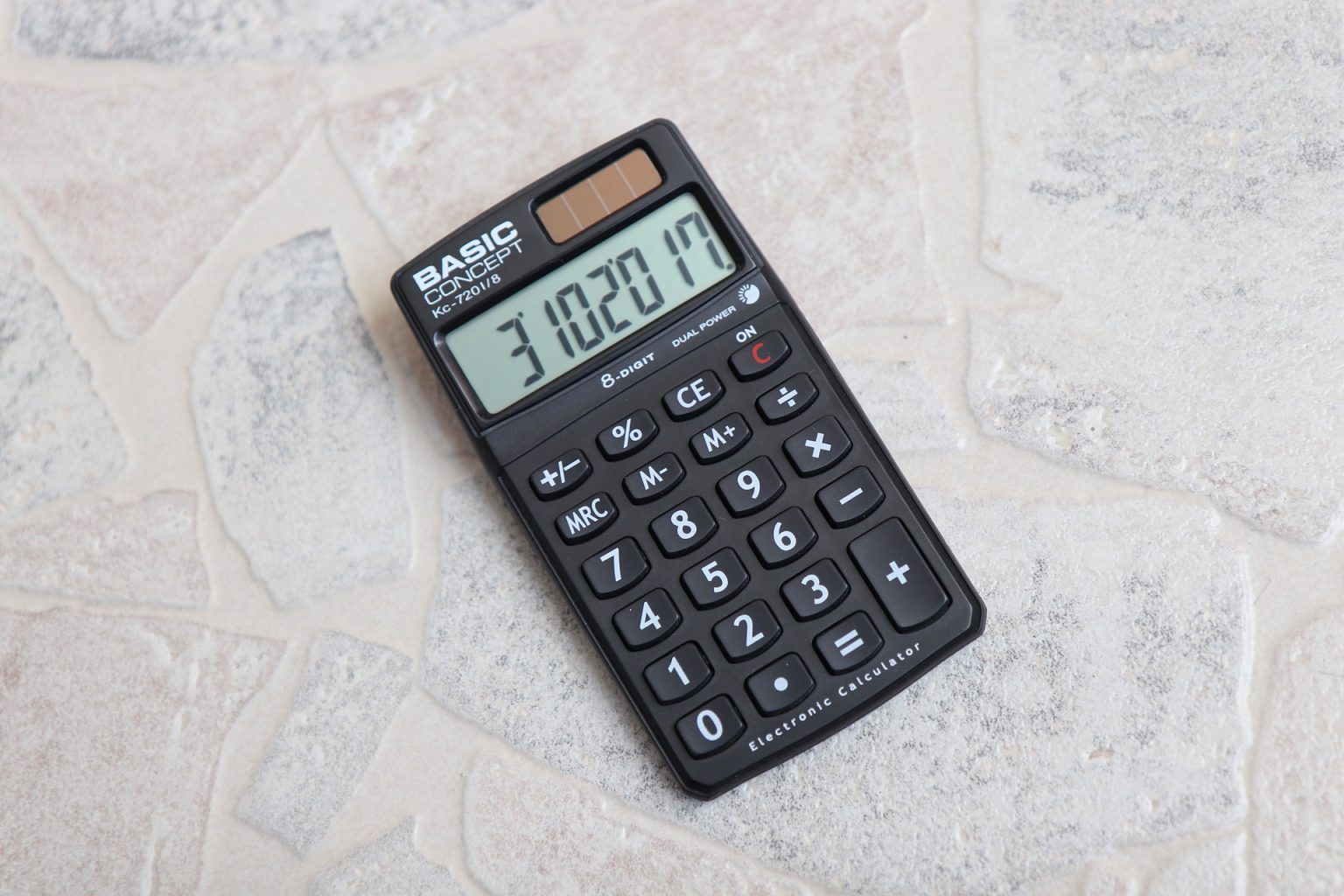
You're halfway through a massive calculation. You’ve added sixteen different numbers, your brain is slightly fried, and then it happens. You fat-finger the last entry. Instead of 450, you typed 4500. Your finger hovers over those two mysterious buttons. One says C. The other says CE. You panic. If you hit the wrong one, does the whole string of numbers vanish into the digital ether? Honestly, most people just mash both until the screen hits zero and start over from scratch. It's a waste of time.
The c vs ce calculator debate isn't actually a debate; it’s a misunderstanding of 1970s interface design that we’ve just collectively decided to ignore for fifty years. Understanding the difference is basically the "utility belt" moment for anyone who deals with budgets, math homework, or retail spreadsheets. It's the difference between a minor typo and a total redo.
What Does CE Actually Do?
Think of the CE button as an "undo" for your very last action. It stands for Clear Entry.
If you are typing a long string of addition—let's say $10 + 20 + 30 + 40$—and you realize you meant to type 45 instead of 40, you hit CE. The calculator wipes that "40" but keeps the running total of 60 ($10+20+30$) tucked away in its internal register. You type 45, hit equals, and you get 105. It’s surgical. It’s precise.
CE only clears the "display" register. It doesn't touch the "accumulator." That's the technical term for the memory slot where the calculator is doing the heavy lifting. If you’re using a physical Casio or a Sharp desktop calculator, this button is your best friend during tax season.
The Nuclear Option: Understanding the C Button
Then there’s the C button. This stands for Clear.
Some people think it stands for "Cancel," which is sorta right but technically wrong. When you hit C, you are clearing everything. The display goes to zero, the running total is wiped, and the calculator's temporary memory is flushed. It’s a total reset.
If you were in the middle of that same $10 + 20 + 30$ calculation and you hit C, those numbers are gone. You’re back at square one. You’ve basically rebooted the math session.
Why the distinction exists
Back in the day, processing power was expensive. Calculators were designed with specific "registers"—little buckets of memory. One bucket held what you saw on the screen. Another bucket held the sum of everything you’d done so far. The c vs ce calculator layout was a way for users to interact with those specific buckets without needing a mouse or a "backspace" key, which didn't really exist on early mechanical or electronic adding machines.
The Modern Twist: AC and Integrated Buttons
Here is where it gets messy. If you look at your iPhone calculator or certain digital apps, you might not see CE at all. Instead, you see AC.
AC stands for All Clear. On many modern devices, the "C" button actually acts as a "CE" button first. If you type a number, the button says "C." You hit it, and it clears the entry. But once the entry is cleared, the button magically changes to "AC."
It's a context-aware design. Designers realized that humans are prone to clicking "Clear" once to fix a mistake and twice to start over. So, they built the software to follow that logic. One click = Clear Entry. Two clicks = Clear All.
Why physical calculators are different
Go to a bank or an accounting firm. You’ll still see those chunky 10-key calculators with paper rolls. On those, the physical separation of C and CE is vital. If you’re adding up a 50-item invoice list, accidentally hitting "Clear All" because the button didn't "toggle" would be a firing offense. Or at least a reason to throw the machine out the window.
Real experts, the kind who can use a Numpad without looking, rely on the tactile feedback of knowing exactly which memory register they are wiping.
When to Use Which?
Choosing between them is about stakes.
- Use CE when: You’re in a flow. You're adding, subtracting, or multiplying a long chain. You made a typo in the current number. You want to save the work you've already done.
- Use C when: You’ve finished a problem. You’re starting a brand-new calculation. You’ve gotten a weird "Error" message (usually from dividing by zero) and the calculator is frozen.
The "Error" state is a big one. On older models, when you hit a logic error, the calculator locks up. CE won't save you there. You have to hit C to reset the logic gates and start fresh.
The Memory Keys (The Cousins of C and CE)
If you really want to master the c vs ce calculator workflow, you have to look at the other letters: MR, MC, M+, and M-.
People ignore these because they look intimidating, but they are just extra "buckets."
- M+: Takes whatever is on the screen and adds it to a secret third bucket.
- M-: Subtracts the screen number from that secret bucket.
- MR (Memory Recall): Pulls the number out of the secret bucket so you can see it.
- MC (Memory Clear): Empties that secret bucket.
The C and CE buttons do NOT usually clear the Memory (M) buckets. This is a common trap. You can hit C ten times, but if there is a little "M" icon on your screen, the calculator is still holding onto a number in the background. You have to hit MC to truly start with a clean slate.
Common Misconceptions That Mess People Up
One big mistake is assuming every brand follows the same rules. While the c vs ce calculator standard is mostly universal, some cheaper or specialized scientific calculators combine them into a single "ON/C" button.
On those, you usually have to press it once to clear the current number and twice to clear the whole thing. If you hold it down, it might even turn the device off.
Another weird quirk? The backspace. On computer-based calculators or smartphone apps, swiping across the numbers often acts as a "delete" for a single digit. This is even more precise than CE. While CE clears the entire current number (say, changing 5,422 to 0), a backspace or swipe just removes the last "2."
Actionable Steps for Better Math Accuracy
Don't just mash buttons. If you want to stop making errors in your spreadsheets or your checkbook, change how you interact with the interface.
- Test your device first: Type $10 + 10 + 10$. Then type $555$ and hit CE. If the screen shows $0$ but hitting $=$ gives you $30$, your CE button is working correctly as a "Clear Entry" tool.
- Watch for the "M": If your results are consistently weird, look for a tiny "M" on the LCD. If it's there, hit MC or CM immediately. You've likely got a ghost number haunting your math.
- Use the "Double Tap" habit: When starting a completely new project, hit C (or AC) twice. It ensures that both the active register and the accumulator are dead.
- Switch to "RPN" if you're brave: If you hate the C vs CE ambiguity, look into Reverse Polish Notation (HP calculators use this). There is no "equals" button. You push numbers onto a "stack." It’s how NASA engineers did the moon landing, and it basically eliminates the need for a CE button because you can see the whole stack.
The c vs ce calculator struggle is really just a relic of a time when we had to be very careful about which piece of the machine's "brain" we were talking to. Now that you know the difference, you can stop fearing the "Clear" button and start using it like a pro. Save the C for the end; use CE for the "whoops" moments.