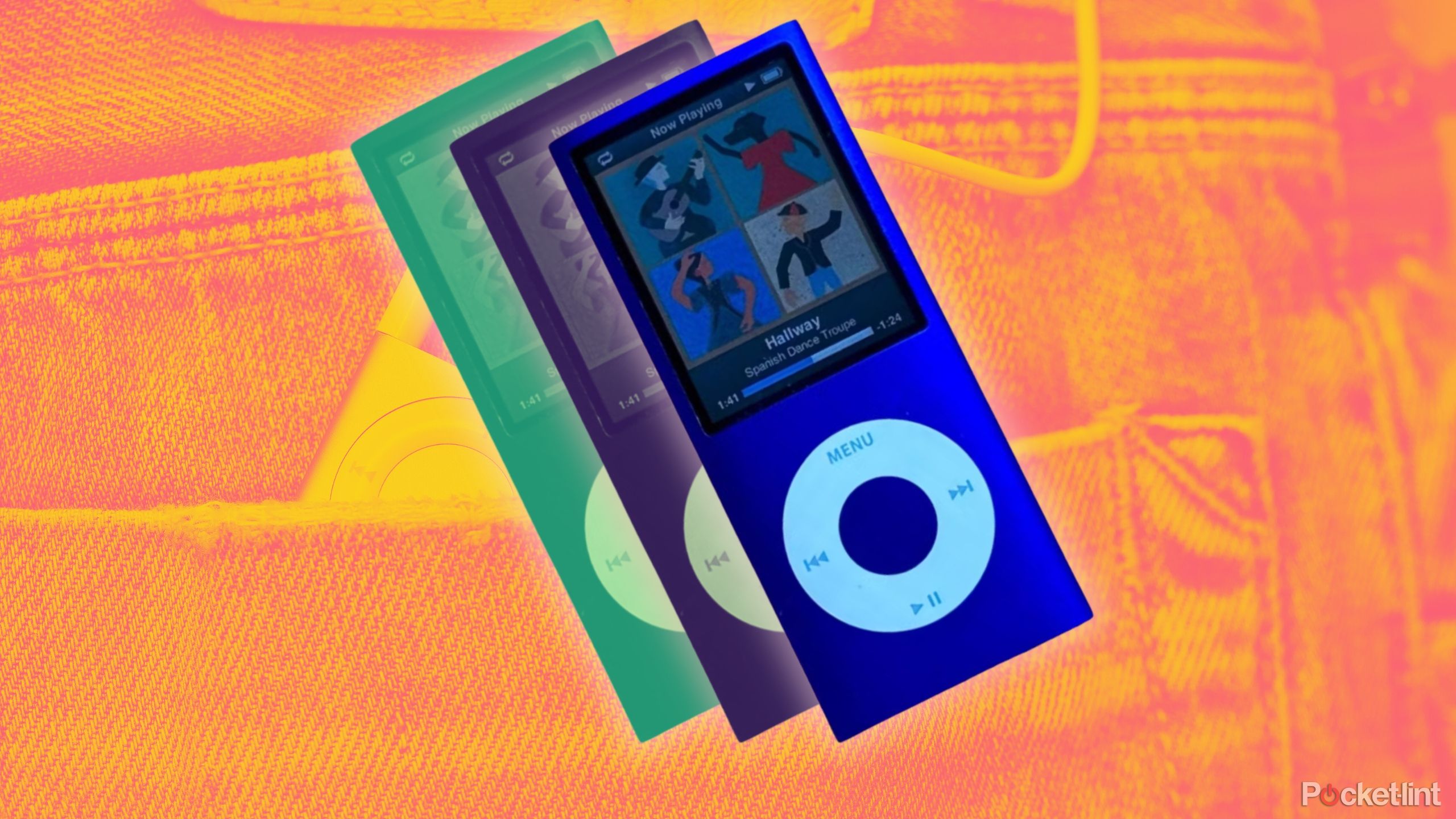
It starts with a song you love. Then, it happens again. And again. Suddenly, that 2006 indie anthem isn’t a nostalgic trip anymore; it’s a hostage situation. Having an iPod stuck on replay is one of those specific, niche frustrations that bridges the gap between vintage tech charm and absolute digital misery. You’re jogging, or maybe driving with a 30-pin adapter, and you realize you’ve heard the same chorus four times.
It's annoying.
Most people assume their hard drive is dying. They think the click wheel has finally surrendered to years of sweat and thumb oil. Honestly? It’s usually just a buried setting or a software glitch that’s easier to handle than you’d think. Apple’s UI from twenty years ago was brilliant, but it wasn't always obvious. Sometimes, the "Repeat" icon is so small on a monochrome screen that you’d need a magnifying glass to see it.
The Most Obvious Culprit: The Repeat Toggle
Before you start looking for a tiny screwdriver to pry the casing open, check the Now Playing screen. It sounds basic. It is basic. Yet, it’s the reason for 90% of these "broken" devices. On the iPod Classic or the Nano, clicking the center button several times while a song is playing cycles through different status bars. You’ll see the scrubber, then the Genius rating, and eventually, the Shuffle/Repeat settings.
If there’s a small "1" inside a circular arrow, you’re in a loop. That’s the "Repeat One" mode.
You want that icon to be greyed out or gone entirely. It’s remarkably easy to accidentally trigger this while the iPod is in your pocket if the "Hold" switch isn't engaged. I’ve seen countless users swear their iPod was haunted when, in reality, their jeans just really liked Mr. Brightside.
On the iPod Touch, it’s a different story. Since those run versions of iOS, the Repeat button is often tucked away at the bottom of the Music app. You might have to swipe up on the Now Playing card to reveal it. If that button is highlighted, your iPod stuck on replay is simply doing exactly what it was told to do.
When Software Goes Sideways
Sometimes the setting says "Off," but the music says "Again." This is where things get interesting. Apple’s legacy software, especially the versions running on the iPod Video (5th Gen) or the early Nanos, can suffer from database corruption.
Think of it like a library where the index cards are all mixed up. The iPod thinks it’s finished the song, looks at its internal map to find the next one, and accidentally points right back to the start of the current track.
The Hard Reset Trick
Don't panic. You don't need to format it yet.
- Toggle the Hold switch on and off.
- Hold down the Menu and Center buttons simultaneously.
- Wait for the Apple logo.
This forced reboot clears the temporary cache. It’s the "have you tried turning it off and on again" of the iPod world, but for these devices, it actually works because it forces the OS to re-read the file structure. If you’re using an iPod Shuffle, you just flip the power switch, wait ten seconds, and flip it back. Simple.
The "Corrupt File" Theory
There is a darker possibility. If your iPod stuck on replay only happens on specific albums or tracks, you’re likely dealing with a bad sync.
Digital music files can get "bit rot" or experience errors during the transfer from iTunes (or Music on macOS) to the device. When the iPod’s processor hits a gap in the data it can't interpret, it often fails gracefully by simply restarting the buffer. To the user, it looks like a replay. To the iPod, it’s a recovery maneuver.
The fix here is surgical. You need to delete the offending songs from the iPod, then re-sync them from your computer. If the file is a high-bitrate ALAC or a weirdly encoded MP3, the older hardware might struggle to process it, leading to a loop or a skip.
Smart Playlists: The Hidden Loop
Smart Playlists are the unsung heroes of the iPod era, but they are also glitch magnets. If you have a Smart Playlist set to "Limit to 25 items" and "Selected by most recently played," you can create a logic loop.
The iPod plays a song. Because it was just played, it technically drops out of the "most recently played" criteria or shifts positions. If the iPod's firmware can't update the list fast enough, it can get stuck. I’ve seen this happen specifically on the 3rd and 4th generation "Click Wheel" models.
Try playing music from the "Songs" menu instead of a playlist. If the looping stops, your playlist logic is the problem, not your hardware.
Is the Hard Drive Failing?
We have to talk about the "Click of Death."
The classic iPods (1st through 7th generation, excluding the Flash-based ones) use actual spinning hard drives. These are mechanical wonders, but they are fragile. When a sector on the disk goes bad, the read head might get stuck trying to access the next bit of data.
If you hear a faint click-whir-click sound when the song ends, your hardware is likely failing. The iPod tries to load the next track, fails, and reverts to what's already in its 32MB or 64MB RAM cache. That's why it stays stuck on replay.
If this is you, it might be time for an iFlash mod. Replacing that old spinning drive with an SD card adapter breathes new life into the device. It makes it faster, lighter, and completely eliminates the skipping and looping caused by physical disk errors. Many enthusiasts, including those at sites like iFixit and Elite Obsolete Electronics, recommend this as the first upgrade for any legacy device.
Dealing with the iPod Touch and iOS Glitches
For the iPod Touch, the "stuck on replay" issue is almost always an app-level bug. Since the Music app on iOS evolved into "Apple Music," it’s become more reliant on cloud pings.
If you’re listening to a song that isn’t fully downloaded, and your Wi-Fi is spotty, the app might loop the cached portion of the song because it can't fetch the next one.
Pro tip: Go into Settings > Music and toggle "Show Downloaded Music Only." This forces the iPod to stay within its local library and prevents it from tripping over a bad internet connection.
Actionable Steps to Reclaim Your Music
If you're currently staring at your iPod in frustration, follow this sequence to narrow down the cause:
- Check the UI first: Ensure the Repeat icon isn't active. On a Click Wheel iPod, press the center button repeatedly to find the setting. On a Touch, swipe up on the Now Playing screen.
- The 10-Second Reset: Perform a hard reboot (Menu + Center for Classic; Power + Home for older Touch models).
- Test the "Song" Menu: Navigate away from Playlists and play directly from the "Songs" or "Albums" list to rule out Smart Playlist logic errors.
- Re-sync the Library: If it’s just one album, delete it and re-add it via iTunes or Finder. Check for "errors" during the sync process.
- Listen for Hardware Noise: Put your ear to the back of the device. If you hear rhythmic clicking, your hard drive is dying and needs an SD card replacement.
- Update or Restore: As a last resort, use the "Restore" function in iTunes. This wipes the device and reinstalls the firmware. It’s a pain, but it clears out any deep-seated database corruption.
Legacy tech requires a bit of patience, but the tactile feel of an iPod is worth the occasional troubleshooting. Most of the time, your iPod stuck on replay isn't a sign of the end—it's just a reminder that even the best gadgets need a little nudge to keep moving forward.